中文Download Agave
Agave Browser + MCP

Bring your AI into
your browsing workflow.

Connect the AI client you already use. Give it a specific page to read, organize, or interact with, while keeping your familiar way of browsing.

Connect your existing AI clientSeparate browsing spacesManage access yourself
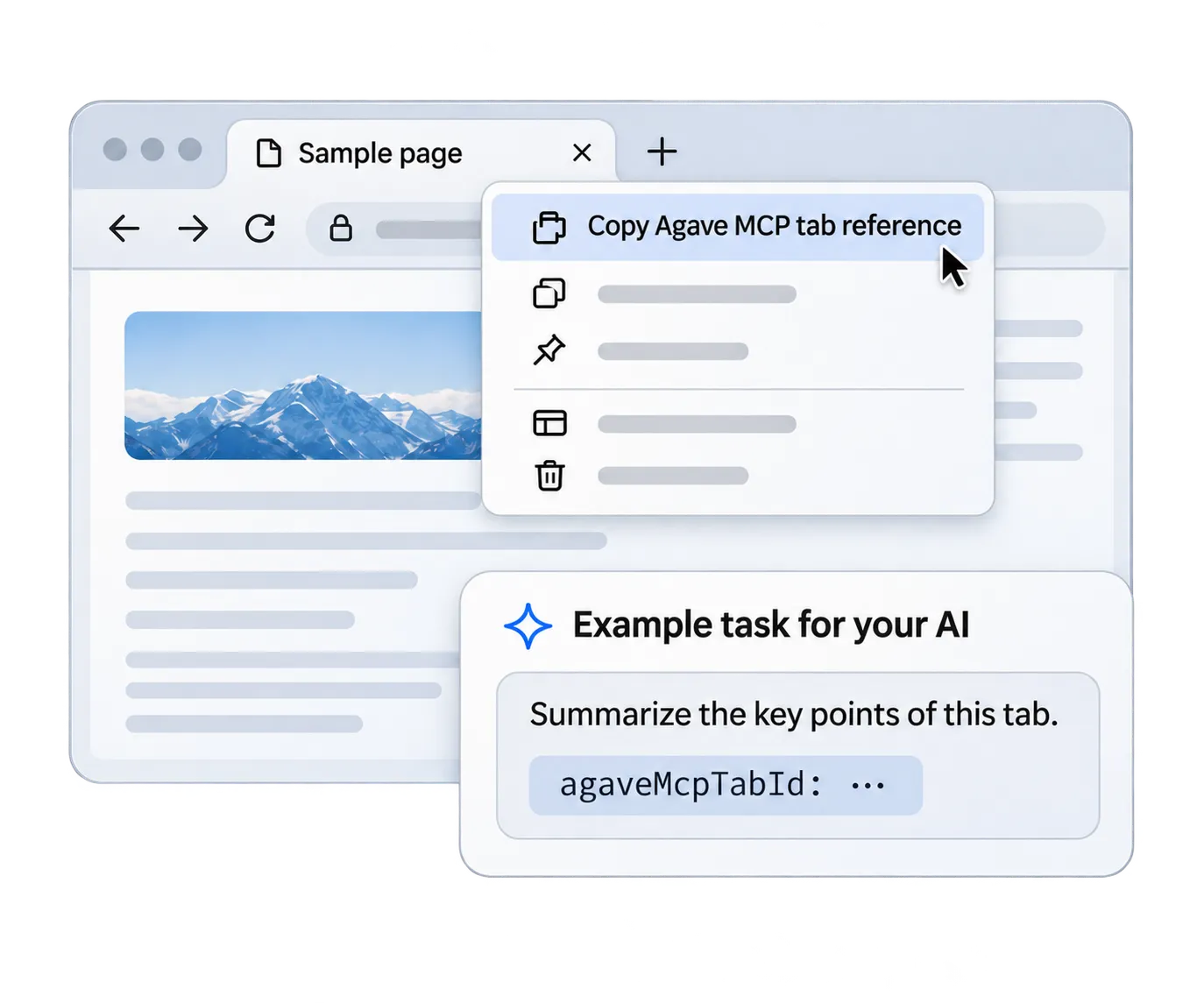
Workflow illustration · not an actual webpage screenshot
CONNECT VIA MCPCodexClaude CodeClaude DesktopQoderTRAE

Start with a real task

A helping hand for what comes next

Choose the page, explain the goal, and grant the access your task needs.

Make sense of a long article

Open an article, share its tab reference, and ask your AI for key points and questions to verify.

Bring information together

Keep the pages you want to compare open, and ask your AI to extract information and organize differences.

Work through a web task

Specify what to fill, upload, or download. Actions run within the applicable website permissions.

Get connected

From your browser to your AI client

Your AI works with your open browser. The task target and access permissions are managed separately.

  1. Connect your client

    Create a separate Token in the MCP gateway, then use the configuration generated by Agave in your AI client.

  2. Point to a page

    Right-click a web tab, copy its Agave MCP tab reference, and send it to your AI with the task.

  3. Grant access and review

    Allow the reading or interaction your task needs. Stop MCP access when you want to pause collaboration.

Built for browsing. Ready for collaboration.

Keep web tasks, account environments, and AI access in clear places.

AI web collaboration

Connect an external AI client through MCP to read pages, extract information, and perform authorized interactions.

Separate browsing spaces

Keep work, personal, and other accounts in spaces with independent sign-in state and website storage.

Everyday browsing tools

Tab groups, bookmarks, history, downloads, find in page, screenshots, and printing support your daily work.

Access you can manage

Manage client credentials, tools, browsing spaces, and website capabilities separately. Stop MCP access when needed.

Understand access

Collaborate with clear permissions

Give clients separate credentials and decide what they may read or do on each website. Learn how text redaction differs from screenshots before using them.

Read about permissions & privacy

Before you get started

Do I need to connect an AI to browse?

Everyday browsing does not require a Token or an AI connection. Set up an MCP client when you want help with a web task.

Which AI clients can I connect?

Agave includes configuration options for Codex, Claude Code, Claude Desktop, Qoder, and TRAE, plus manual configuration for other MCP clients. Use the configuration generated by the app.

Does a tab reference grant access?

A tab reference identifies a page. Client identity, tool scope, browsing space scope, and website permissions still apply separately. Tabs on the same website origin share website permissions.

Does local-first mean no data goes to my AI?

Your AI client processes the page information returned for its task. Online translation also sends text to the selected provider. Choose suitable content based on your task and provider policies.

Start with your first web task

Install Agave, connect your client, and put the page you are reading to work.